

“Why Won’t My Stuff Back Up?”
iCloud is more than just storage; it’s a constant sync between your device and Apple’s servers. If that link breaks, your data is at risk. Use these steps to find the “clog” and clear it.

1. The “Basics” Check (The 90% Fix)
Before diving into deep settings, ensure these three conditions are met:
- Power: Your iPhone won’t perform a full backup unless it is plugged into a charger or has over 50% battery.
- Wi-Fi: Backups are disabled on Cellular by default to save your data plan. Connect to a stable Wi-Fi network.
- Storage: Go to
Settings>[Your Name]>iCloud. If that bar at the top is full, your backup will fail.

2. Uncommon “Outside the Box” Fixes
If you have plenty of storage and great Wi-Fi but it still won’t back up, try these:
- The “Date & Time” Glitch: If your phone’s internal clock is even 2 minutes off from Apple’s servers, the security “handshake” will fail.
- The Fix: Go to
Settings>General>Date & Timeand toggle Set Automatically OFF and then back ON.
- The Fix: Go to
- Delete the “Ghost” Backup: Sometimes an old, corrupted backup file is sitting in the cloud, blocking new ones from uploading.
- The Fix: Go to
iCloud>Manage Account Storage>Backups> Select your device > Delete Backup. Then, immediately go back and tap Back Up Now to create a fresh, clean file.
- The Fix: Go to
- The “Next Backup Size” Calculation: If your phone says “Estimating time remaining” forever, it’s likely trying to back up a massive app (like a 50GB WhatsApp history).
- The Fix: In the Backup settings, look at the “Choose Data to Back Up” list. Toggle off the biggest apps (usually Photos or Video editors) and try the backup again. If it works, you know where the clog was.
3. Password & Lockout Recovery
Forgotten your Apple Account password? Here are your options, from standard to “Emergency.”
Method A: The Trusted Device (Easiest)
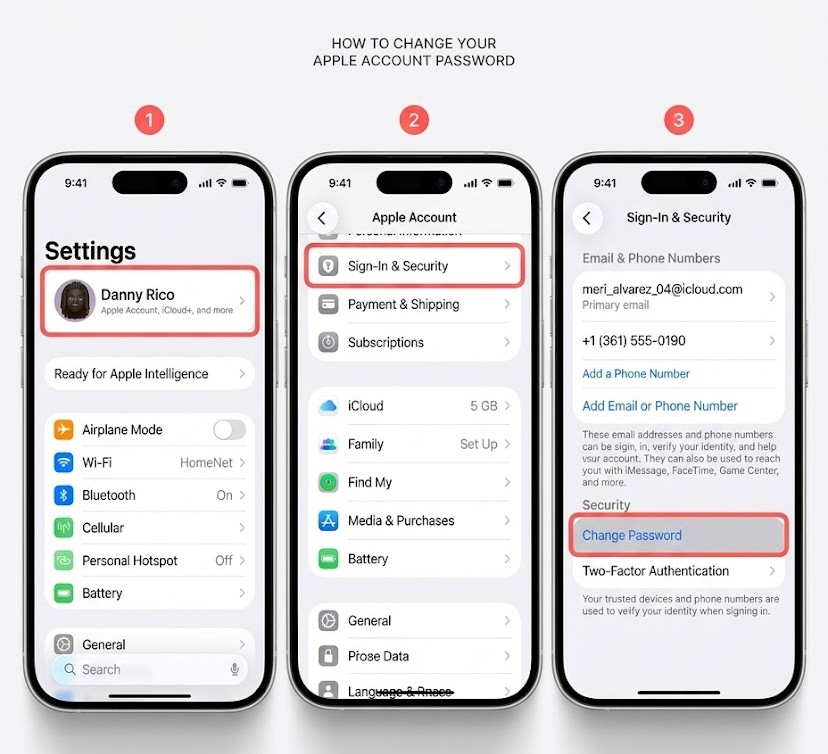
If you have an iPhone, iPad, or Mac signed into the same account, go to Settings > [Your Name] > Sign-In & Security > Change Password.You only need your device passcode to set a new one.
If you do not have a passcode for your device, keep reading for alternate options.
Method B: Recovery Contacts (The “Friend” Pass)
If you set this up in advance, a trusted friend can generate a code on their iPhone to unlock yours.
- How: Call your contact. They go to their
Settings>[Name]>Sign-In & Security>Account Recoveryto give you a 6-digit code.
Method C: The Recovery Key (The “Nuclear” Option)
If you turned on a Recovery Key (a 28-character code), you are the only one who can unlock your account.
- Warning: If you lose this key AND forget your password, Apple cannot help you. Your account is gone forever. This is why we recommend keeping a physical copy in a safe.
4. Why are my Photos/Messages “Paused”?
You might see a message at the bottom of your Photos app saying “Syncing Paused.”
- Low Power Mode: This is the #1 culprit. If your battery icon is yellow, syncing stops to save juice.
- Thermal Throttling: If your phone is hot (common during summer in Lima!), iCloud will pause to prevent the internal components from overheating during the data upload. Put the phone in a cool spot and wait.
- Cellular Data Limits: Go to
Settings>Photos>Cellular Dataand ensure Unlimited Updates is toggled on if you want to sync without Wi-Fi.
5. The “Account Recovery” Waiting Game
If you have no trusted devices and no recovery contact, you have to go to iforgot.apple.com.
- The Reality: This process can take anywhere from 3 days to 3 weeks. Apple’s automated system verifies your identity manually.
- The “Secret” to Speeding it Up: Do not keep trying to sign in while you are waiting. Every failed login attempt can reset the timer.