

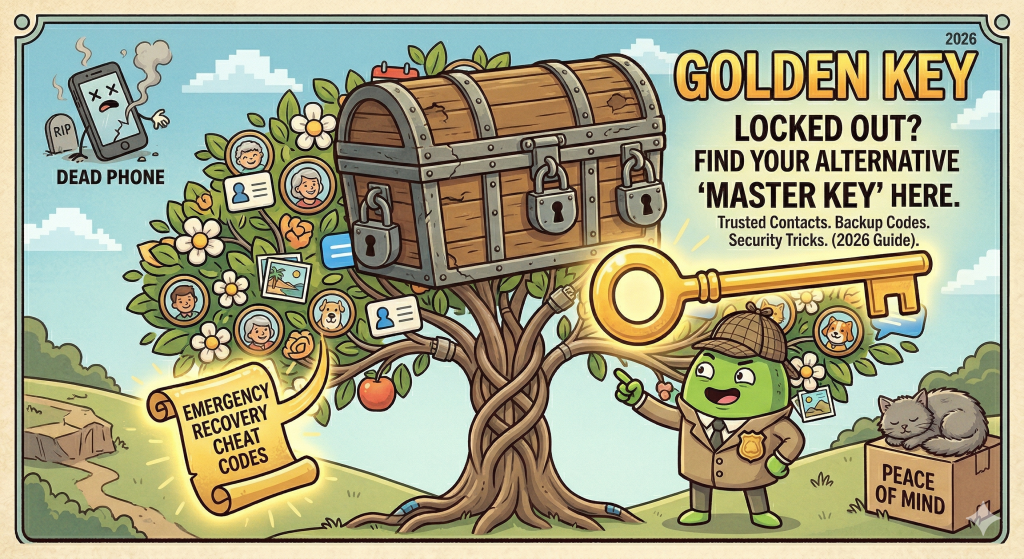
1. Google Account (The “Master Key”)
Since your Google account controls your email, contacts, and Play Store, this is the most important one to fix first.
- The Website: Go to g.co/recover.
- The Steps:
- Enter your email or the phone number associated with the account.
- Try Another Way: If you don’t remember your password, Google will ask a series of questions. Answer them as best as you can.
- Use a Familiar Device: Google’s security is smart. It is much more likely to let you in if you use the computer or tablet you normally use at home.
- Verification Code: Google will send a 6-digit code to your recovery email or your phone via text. Enter it to reset your password.
2. Samsung Account
Essential for Samsung users to access “Find My Mobile,” Samsung Cloud, and Galaxy Themes.
- The Steps:
- Go to Settings > Samsung Account.
- Tap Forgot password or don’t have an account? and select Forgot ID or Forgot Password.
- To Find Your ID: Enter your name and birthdate. Samsung will show you a “hint” of your email (e.g., k****@gmail.com).
- To Reset Password: Enter your email ID. Samsung will send a verification code to your phone number or a reset link to your email.
- Pro Tip: If you changed your phone number and can’t get the code, look for the “Need to change your phone number?” link on the sign-in screen to verify via email instead.
3. Microsoft / OneDrive Account
If you use a Samsung or Motorola, your photos are likely backed up here.
- The Website: Go to account.live.com/acsr.
- The Steps:
- Enter the email, phone number, or Skype name you used.
- Enter an alternate email where Microsoft can contact you.
- The Questionnaire: Microsoft will ask you for things like “Subject lines of recent emails you sent” or “Names of folders you created.”
- The Wait: Microsoft takes security seriously. It can take up to 24 hours for them to review your answers and send you a password reset link.
Brand-Specific Shortcuts (Motorola & OnePlus)
- Motorola: Moto phones don’t have a specific “Motorola Account” for backups; they rely entirely on your Google Account. Follow the Google steps above.
- OnePlus: Go to Settings > OnePlus Account > Forgot Password. You will need access to the email or phone number you used when you first bought the phone.
Account Recovery Troubleshooting Table
| If you see this error: | What it means: | The “King of Kings” Fix: |
| “Google couldn’t verify it’s you” | Google thinks a stranger is trying to hack you. | Wait 48 hours without trying again. Then, try from your home Wi-Fi using your old phone. |
| “Account Frozen” | You haven’t logged in for 2+ years. | You may need to contact Direct Support. (See our “Links” section below). |
| “Verification Code not arriving” | Your signal is weak or the number is old. | Check your “Spam” or “Promotions” folder in your email. Sometimes these codes get filtered out! |
The “Safety First” Checklist
Once you get back in, do these three things so you never get locked out again:
- Add a Recovery Phone Number: A number of a trusted family member is a great backup.
- Download “Backup Codes”: Google and Samsung let you print out a list of 10 codes. Keep these in your safe or “junk drawer” as an emergency key.
- Set Up a “Passkey”: In 2026, you can use your fingerprint or face scan to log in instead of a password. It’s much harder to forget your finger!
Tried Everything and No Luck?
1. Google’s “Trusted Contacts” (The Lifeline)
In 2026, Google has a feature called Recovery Contacts. If you set this up before getting locked out, a friend or family member can literally “vouch” for you.
- The Method: When you’re on the recovery screen and it asks for a code you can’t get, look for “Ask a Recovery Contact for help.”
- How it works: Google will give you a specific number. You call your trusted friend, give them that number, and they confirm it on their phone. Once they hit “Yes,” Google unlocks your account instantly.
- King of Kings Tip: You can have up to 10 recovery contacts. Add your kids or a tech-savvy grandkid today!
2. The “Physical Key” (Backup Codes)
Most people don’t realize that when you set up your account, Google and Samsung gave you 10 “Emergency Keys.” These are 8-digit numbers that work even if you don’t have your phone, your email, or your password.
- Where to find them: Search your computer or old emails for a file named
Backup-codes-username.txt. Many people print these out and put them in a physical “junk drawer” or a home safe. - How to use: On the login screen, tap “Try another way” and select “Enter one of your 8-digit backup codes.” This bypasses all other security checks.
3. The “Find My Mobile” Backdoor (Samsung Only)
If you are locked out of your phone screen (forgot your PIN) but can still get on a computer:
- The Website: Go to smartthingsfind.samsung.com.
- The Secret Button: Log in with your Samsung account. If your phone is turned on and has internet, you will see an icon for “Unlock.” * The Result: Clicking this will remotely wipe your PIN or Pattern from the phone, letting you right in without a factory reset.
4. Sign In With “Google” (The Samsung Shortcut)
If you can’t remember your Samsung password but you can get into your Gmail:
- On the Samsung login page, look for the “Sign in with Google” button at the bottom.
- Since Samsung and Google are partners in 2026, you can often use your Google “key” to open your Samsung “door.” This saves you from having to do a separate recovery process for both.
5. Microsoft’s “Account Reinstatement” Form
If the standard “forgot password” fails for OneDrive or Outlook, Microsoft has a “court appeal” style form.
- The Link: account.live.com/acsr.
- The Secret to Winning: Microsoft’s computer grades your “test.” To pass, you need to provide:
- Old Passwords: Even if they are 5 years old, they help.
- Subject Lines: Think of the last 3 emails you sent.
- Folder Names: Did you make a folder called “Tax 2025” or “Grandkids”? List them!
- The Wait: It takes 24–48 hours, but if you provide enough “clues,” a human at Microsoft will manually unlock your account.
Alternative Recovery Comparison Table
| Method | Best for when… | Difficulty | Success Rate |
| Recovery Contacts | You have no phone/email access | Easy | ⭐⭐⭐⭐⭐ |
| Backup Codes | You’re traveling/have no signal | Medium | ⭐⭐⭐⭐⭐ |
| Find My Mobile | You forgot your Screen PIN | Easy | ⭐⭐⭐⭐ |
| Microsoft ACSR Form | You lost everything | Hard | ⭐⭐ |