

🔋 The Android Battery Health Guide (2026 Edition)
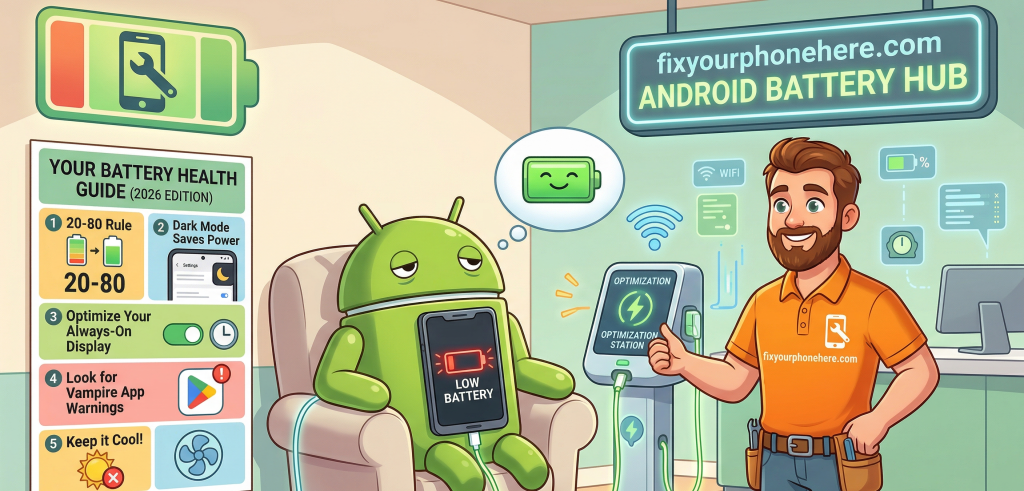
Think of your phone battery like a car tire. Over time, it naturally wears down. But with the right care, you can make it last years longer. In 2026, Android phones have become much smarter about “protecting” themselves, but they still need your help.
The first few tips are not device-specific, as these will work for most Android devices. As you scroll the page, we have device-specific tips, as well as tips for different versions of Android!
🛠️ How to Save Battery (Daily Tips)
For all Android phones (Samsung, Pixel, Moto, OnePlus)
- Lower the “Sunlight” (Brightness): Your screen is the #1 battery eater. Swipe down from the very top of your screen and slide the brightness bar to the left.
- Use “Dark Mode”: Most modern phones use “OLED” screens. In Dark Mode, the black parts of your screen are actually turned off, saving massive amounts of power.
- How: Settings > Display > Dark Theme/Mode.
- The 30-Second Rule (Timeout): Don’t let your screen stay on for minutes after you set it down.
- How: Settings > Display > Screen Timeout > Set to 30 seconds.
- Stop the “Search Party”: If you aren’t using Bluetooth or Wi-Fi (like when you’re driving), turn them off. Your phone uses energy “searching” for a connection.
- Clean Your “Open Apps”: Swipe up from the bottom of your screen and hold for a second. Swipe away the apps you aren’t using. It’s like turning off the lights when you leave a room.
🩺How to Diagnose Your Battery
Is it a software glitch or a dying battery?
The “Secret” Test (Universal)
Open your Phone App (where you dial numbers) and type this exactly: *#*#4636#*#*. If a menu pops up, look for Battery Information. It will tell you the “Health”—if it says anything other than “Good,” it’s time to see a pro.
Brand-Specific Checks:
- Samsung: Open the Samsung Members app (looks like a blue letter M). Tap Support > Phone Diagnostics > Battery Status. It will give you a simple “Normal” or “Action Required” rating.
- Google Pixel: Go to Settings > Battery > Battery Health. It shows a percentage. If it’s below 80%, the battery is “tired.”
- OnePlus: Go to Settings > Battery > Battery Health. OnePlus is famous for its “Battery Health Engine” which aims to keep you at 80% health even after 4 years.
💡”Outside the Box” Tips (The Expert Secrets)
- The “Case” Heat Trap: If your phone feels hot while charging, take the case off. Heat is the #1 silent killer of batteries. A hot battery dies twice as fast as a cool one.
- Avoid “Fast Charging” Overnight: Fast chargers are great for a 15-minute boost, but they stress the battery. If you charge while you sleep, use an old, “slow” charger. It’s gentler.
- The 20-80 Rule: Try not to let your phone hit 0%, and try not to charge it all the way to 100%. Keeping it between 20% and 80% is the “sweet spot” for long-term health.
- Airplane Mode in Weak Areas: If you are in a basement or a rural area with “one bar” of signal, your phone works 10x harder to find a tower. Turn on Airplane Mode until you’re back in a good area to save 20%+ of your juice.
🚀Brand & Version Guides
Samsung (Android 14, 15, & 16)
- The Fix: Look for “Protect Battery” in settings. It stops the charge at 80% or 85% to prevent “over-aging.”
- Where: Settings > Battery > Battery Protection.
Google Pixel (The AI Phone)
- The Fix: Turn on “Adaptive Battery.” The phone uses AI to learn which apps you actually use and “freezes” the ones you don’t.
- Where: Settings > Battery > Adaptive Preferences.
Motorola (The Long-Laster)
- The Fix: Use “Overcharge Protection.” If you leave your Moto on the charger for 3 days (it happens!), it will automatically stop charging to save the hardware.
- Where: Settings > Battery > Overcharge Protection.
🕒 Always-On Display: Convenience vs. Battery
The “Always-On Display” is that feature where your phone shows the time and date even when the screen is “off.” While it looks nice, it is often the #1 secret battery eater.
The 2026 Reality Check
- The Drain: On most modern phones, leaving this on all day can drain about 1% to 2% of your battery every single hour. That doesn’t sound like much, but over a 15-hour day, that’s 30% of your battery gone just to show you the time!
- The Tech: Most Androids today use “OLED” screens. This means the black parts of the screen are actually turned off, which is why the AOD doesn’t kill the battery instantly.
🛠️ Step-by-Step: How to Tame Your “Always-On” Screen
1. The “Tap to Show” Trick (Best for Most People)
Instead of having the screen on literally all the time, set it to only appear when you tap the glass. You still get the info you need without the 24/7 drain.
- Samsung: Settings > Lock Screen and AOD > Always On Display > Select “Tap to show.”
- Google Pixel: Settings > Display > Lock screen > Turn off “Always show time and info.” (Now, it will only “wake up” when you lift the phone or get a notification).
- Motorola: Settings > Display > Peek Display. (Motorola is great at this; it only shows info when it senses you’re nearby).
2. Set a “Bedtime” for Your Screen
You don’t need your phone showing you the time while you’re asleep!
- How: In the Always On Display settings, look for “Show as scheduled.” Set it to turn off at 11:00 PM and back on at 7:00 AM. This saves you 8–10% of your battery every single night.
3. Hide the Wallpaper (The “Dimming” Secret)
Newer Android versions (Android 15 & 16) allow your AOD to show a dimmed version of your actual photo wallpaper. Turn this off. Showing a photo—even a dim one—uses much more power than just a plain black screen with white numbers.
- How: Look for a toggle that says “Show Wallpaper” in your AOD settings and switch it to OFF.
🚀 “Outside the Box” Tips for Always-On Displays
Android 17 “Min Mode” (Coming Soon): If you’re a “tech-forward” user looking at 2027, the next big update will let you put apps like Maps on your Always-On screen in a “Mini Mode.” It’s designed to be low-power, but for now, keep it simple with just the clock.
The “Face Down” Rule: Almost all Android phones have a light sensor. If you put your phone face down on a table or in your pocket, the phone is smart enough to turn the Always-On Display completely off because it knows you can’t see it. This is a great “lazy” way to save battery.
The “March 2026 Update” Warning: If you have a Google Pixel and noticed your screen “freezing” lately, it’s a known issue with the recent update. Turning OFF the Always-On Display for now is the best way to stop the freezing until Google sends a fix.
⚖️Repair vs. Upgrade vs. DIY
| Situation | Recommendation | Why? |
| Phone is < 3 years old, battery is just weak. | Repair (New Battery) | A new battery is roughly $60-$100. Much cheaper than a $800 new phone. |
| Phone is > 5 years old & slow. | Upgrade | At this age, the “brain” (processor) is too old for 2026 apps. A new battery won’t fix the lag. |
| Back of the phone is “bulging” or popping off. | PRO REPAIR ONLY | DANGER: This is a “swollen battery.” It is a fire risk. Do not squeeze it or try to fix it yourself. |
| Charging port is loose/wobbly. | DIY (Clean it!) | Most “broken” batteries are just lint in the port. Use a wooden toothpick (carefully!) to scrape out pocket lint. |